First of all you need an account from Leat. How you setup Leat you read in this article: https://knowledge.jamezz.com/migration/knowledge/how-do-i-setup-leat
After that you can set up Leat rewards.
We would like to inform you with the next steps how create rewards.
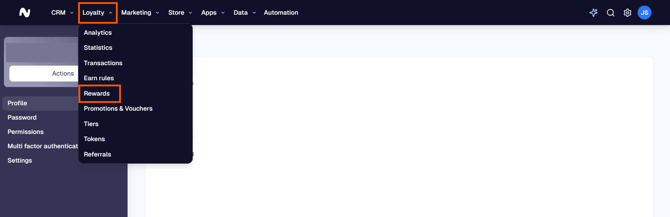
In Leat you go to Loyalty > Rewards and here you can add an new reward.

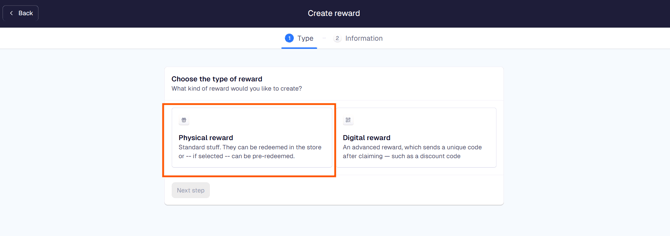
Create a physical reward
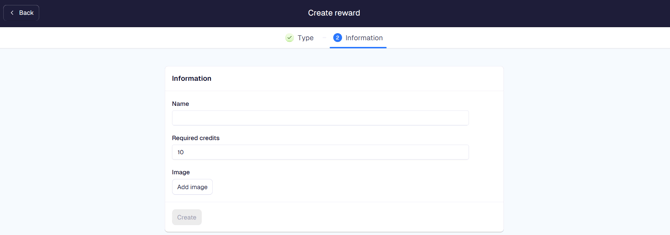
After that, the rewards are available to link with Jamezz BackOffice.
Step 1. Login to the Jamezz BackOffice and navigate to the salesareas tab to find your salesarea.
Step 2. Filter on the salesarea through the magnifying glass and navigate in the left menu on Vouchers and Coupons.
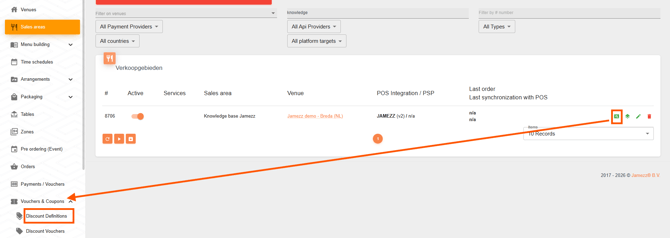
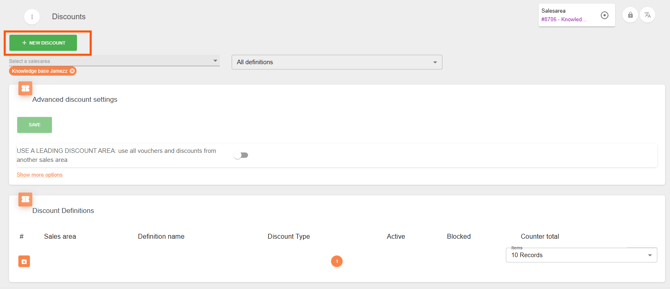
Step 3. Click on Discount Definitions and create a new discount.
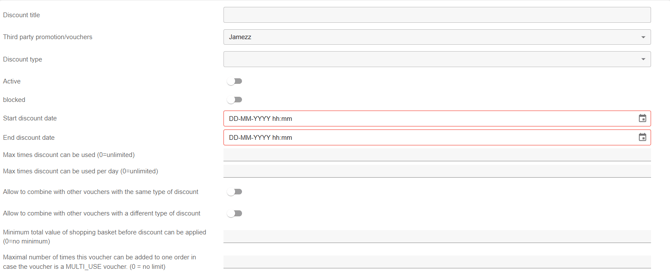
Here you can set up a new discount. First you create the discount title, third party promotion/vouchers is Jamezz and than the discount type. Here you can choose: amount of total, percentage off total, amount of product, percentage of product, add discounted product or collection. Most of the time is one of the first four for the rewards.
Another settings that are important are the active button or blocked button, start and end date, max times that the discount can be used (per day), allow to combine with other vouchers with the same or different type of discount and the minimum total value of shopping basket before discount can be applied.
After these settings you can save the page and you get a new tab for you discount type. Here you can set up more information of the discount type. For example you have the discount type: percentage of product. Here you can fill in the percentage and you set up a Voucher Product for in cash desk and on a receipt and you can set up optional the products which the discount applies.
Step 4. Well done! You create the voucher. But now it is very important that you link this in the Leat tab. First of all the rewards redeeming enabled button is on and you can set up an scan card page image.


After that you see the rewards from Leat back in and you can click on the plus button under change reward to link the reward from Jamezz, you had made in the vouchers and coupons tab from step 2 and 3.
Finish. After you have followed all of the steps above you have successfully setup rewards in Leat with the link and settings to Jamezz.