Step 1:
- Login to the Jamezz Backoffice.
Step 2:
Navigate to the "Sales areas" tab.

Step 3:
Navigate to the sales area settings

Step 4:
Navigate to "Import POS data"

Step 5:
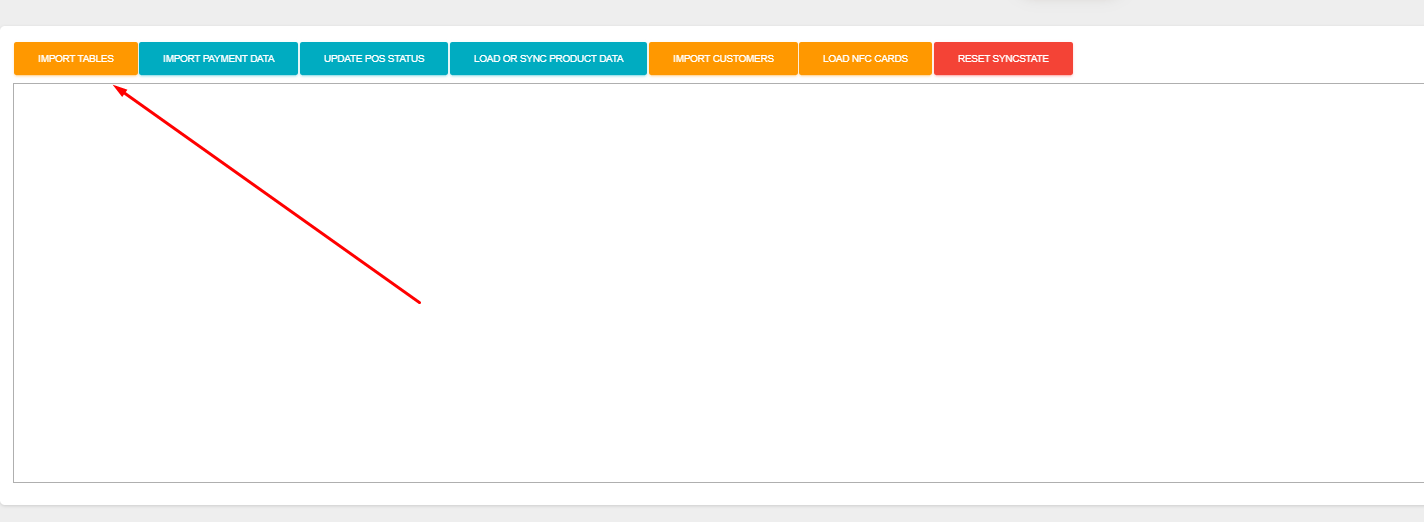
Click on "Import Tables"
Step 6:
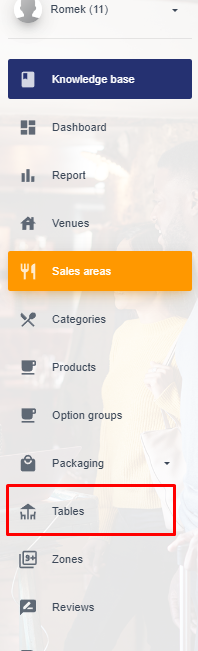
Save and navigate to "Tables"
Step 7:
Generate Webcodes

Step 8:
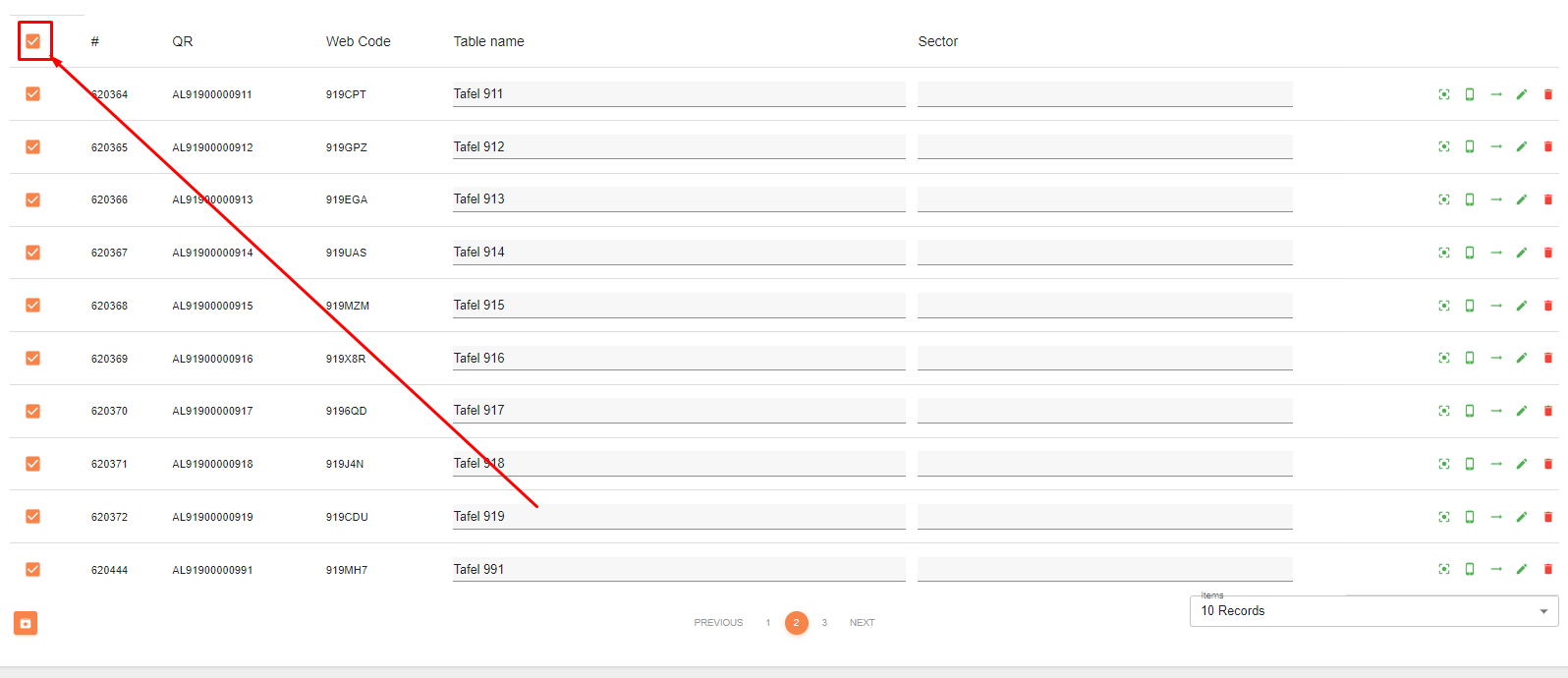
Select the "Select all" button
Step 9:
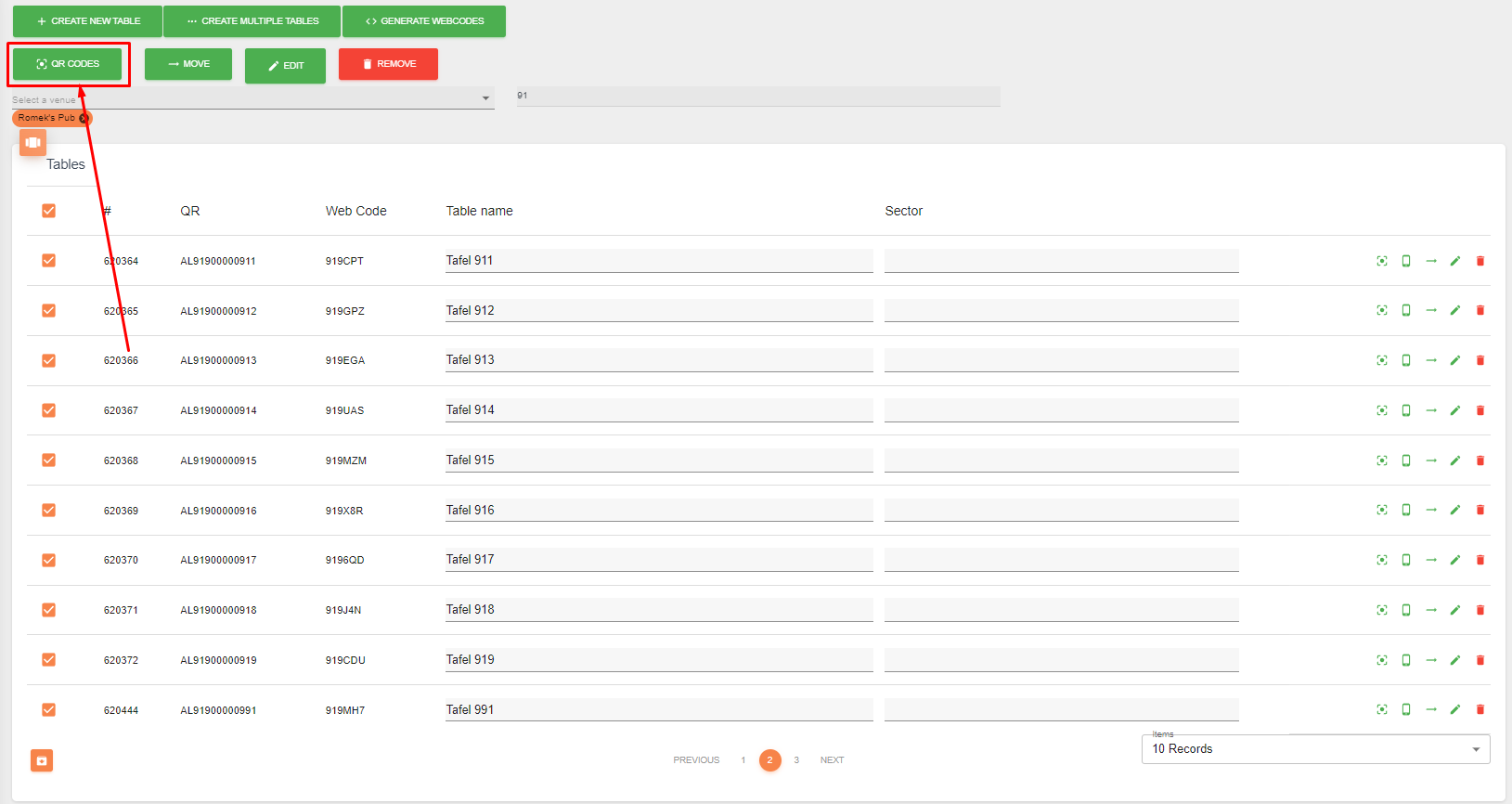
Select the QR code button
Step 10:
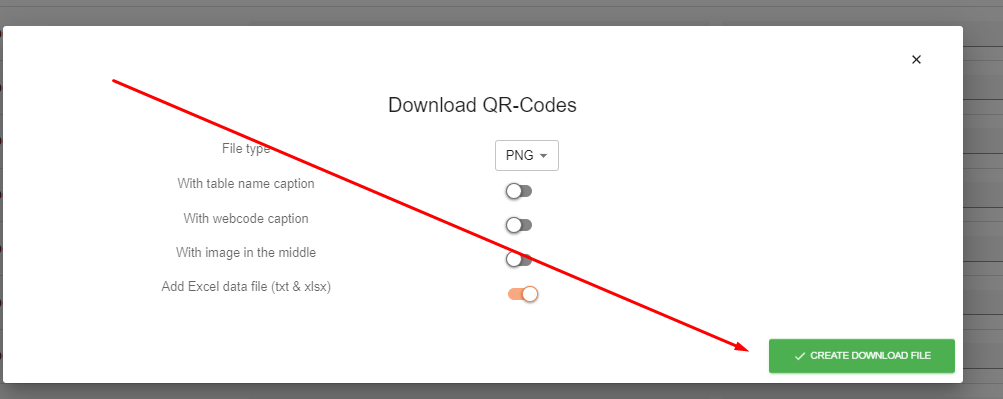
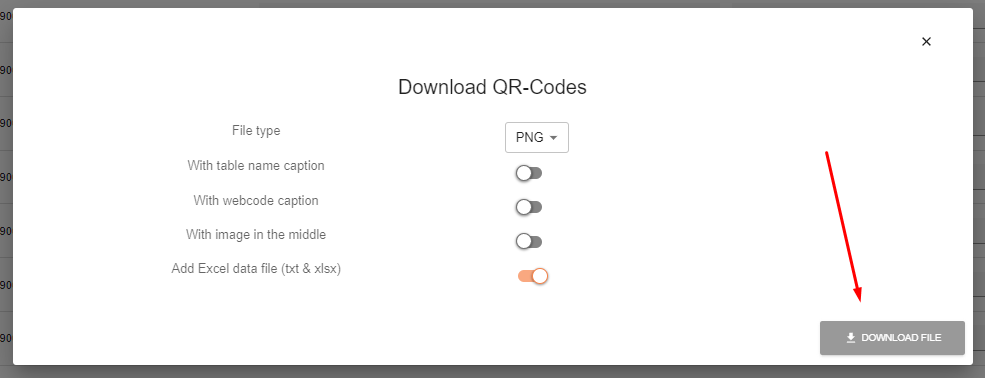
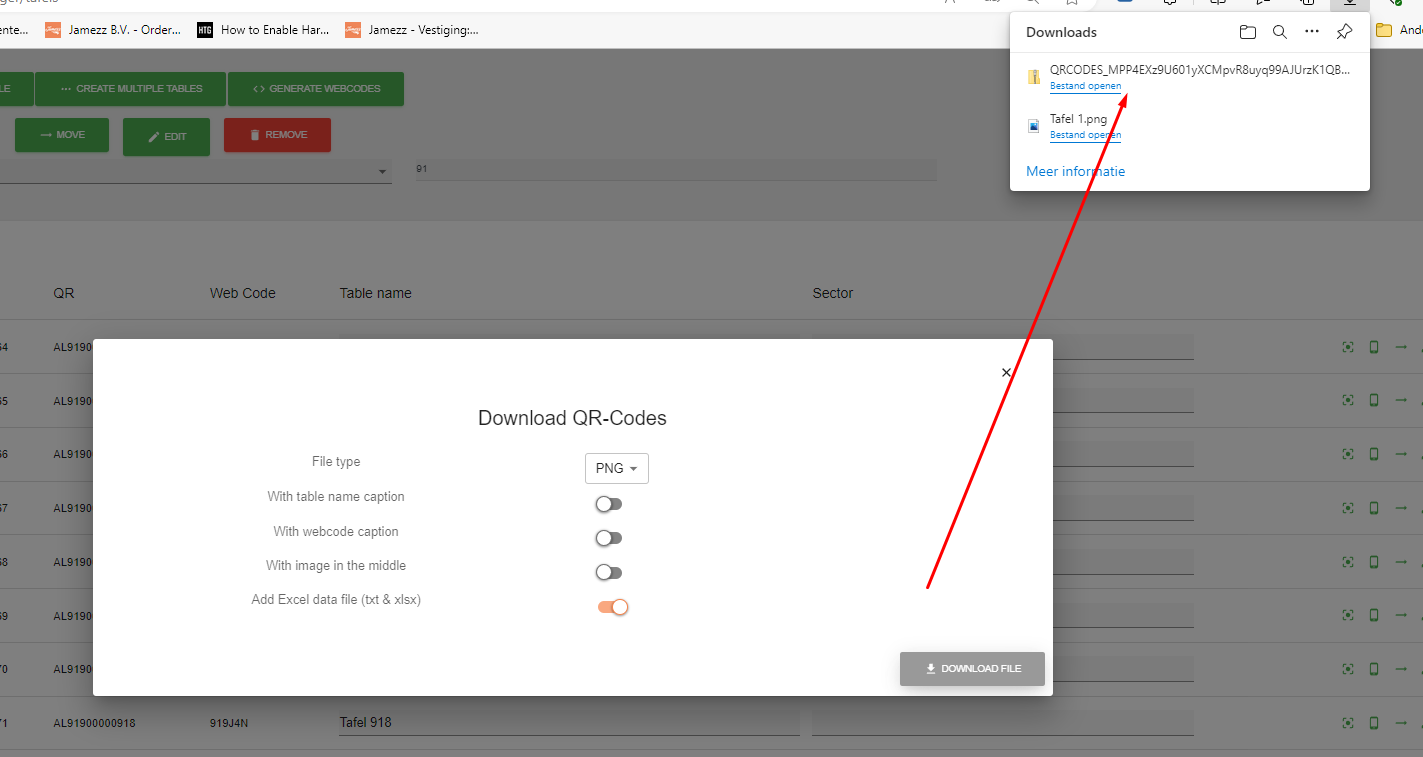
Select "Create download file"
Finish:
After following the steps above you should be able to create a single table or multiple tables.