In the menu bar on the left, you have also tags by menu building. Let's explain how that works.
The tag function serves to create more allergens, preferences, and brands.
If you would like to create a new tag, you click in the tag overview on + new tag.

After that you get this page:
General
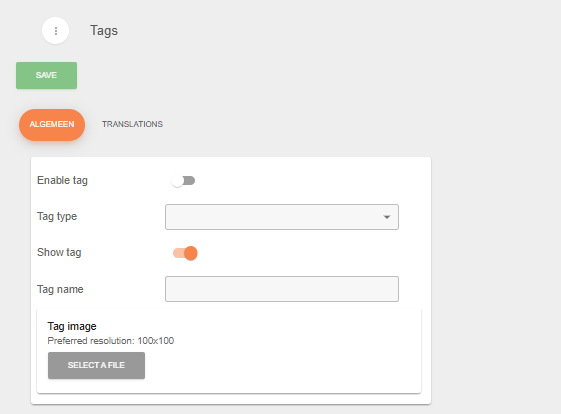
Enable tag: Allows you to turn the tag on or off.
Tag type: Here you set up: allergen, preference or brand.
Show tag: This button you can turn on or off. If you turn it on, you show the image of the tag.
Tag name: Here you can name the tag you are creating.
Add new image: Here you can give the tag a picture that will be displayed in the application.
Translations
In this tab you can edit the name of the tag in the different languague. It can happen that if you automatically translate the tagg, an inappropriate translation is produced.
In this tab you can give the tag a manual translation. The manual translation will then be visible in the application instead of the automatic translation.
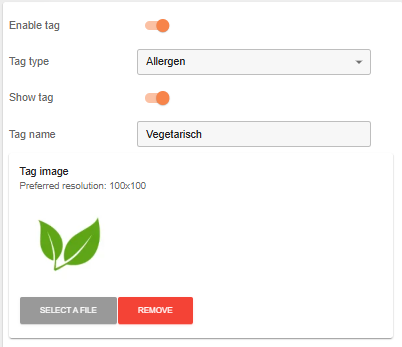
An example:
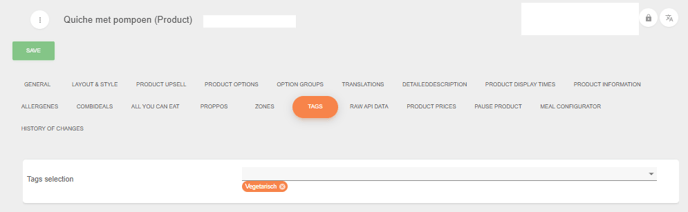
After making the tag, you can add the tag by the product or different products. You click on the left menu bar on products and search your product and edit the product with the pencil icon.
Than you have the tab tags and there you can add the tag or tags.
For example:
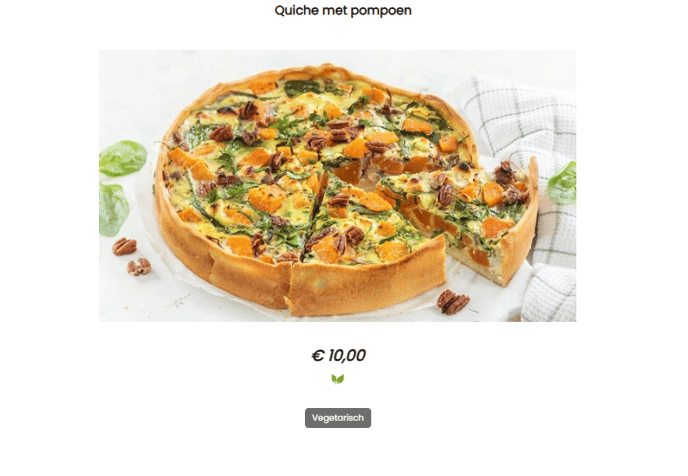
In the application you see the image back: