Qr settings
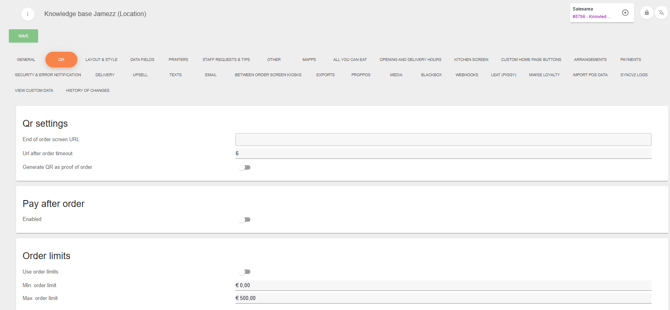
End of order screen URL: The product specified tab provides you with the option to redirect your customer to a webpage or service after an order has succesfully placed on the Jamezz Platform. This may depend on the used payment mode and configured method of the salesarea. The link must start with 'https://'.
Url after order timeout: Will define the time (in seconds) in which this page is shown in the app.
Generate QR as proof of order: This will provide orders that are placed successfully on the Jamezz platform, with an unique order ID as QR-code. This will be displayed on the order placed page, printed eon the receipt and included if order-mail is enabled.
Order limits
With Order limits you can apply both a minimum as maximum order value limit. The valuta type must be set correctly at general settings. To turn on any limitation at all, switch the “Use order limits” button to the right and save the settings. Both limit type can be set at “Min. Order limit” and “Max. Order limit”. To define unlimited maximum remove the complete value from the input field and click on save. This will set it on NULL.

QR app images
For these settings you read this page: https://knowledge.jamezz.com/knowledge/layout-style
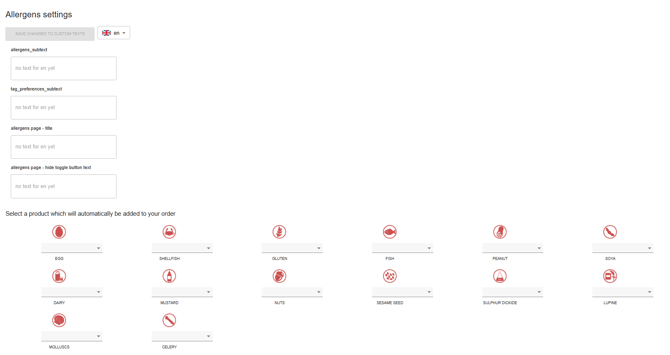
Allergens Settings:
Here you can set up the allergens. Most of the time our guests use the allergen function in products.