Themes & Layouts:
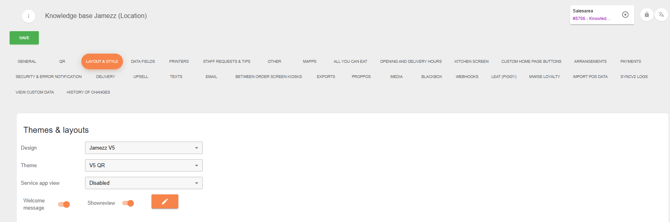
Design and Theme : Here you can see which design you use for your Jamezz application.
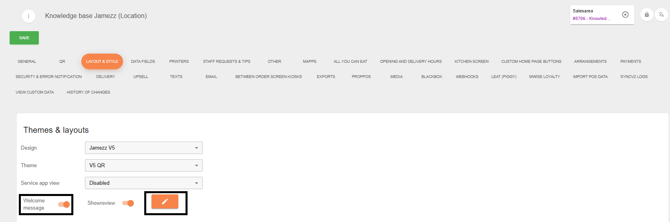
Welcome message:
To set a welcome message, go to the appropriate sales area and press the green pencil icon. Then go to lay-out and style. The image below shows where you can set up a welcome message.
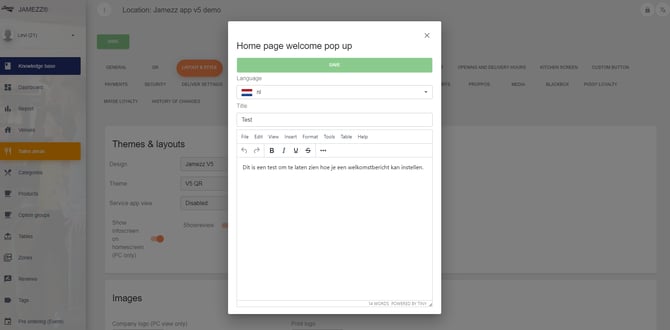
You can set this by different language. So if you would like to use it in Dutch, English and/or German in your application you also need to enter the texts and save every text separate. An example here below:
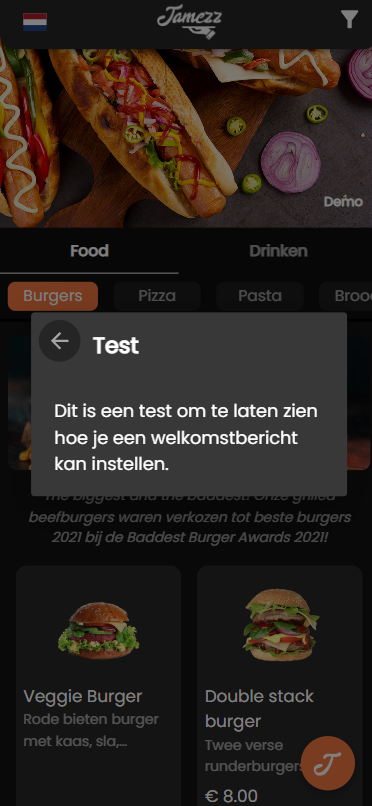
If you save all things, the text is displayed when the guest opens the application. The image below shows an example of how this looks in the application.
Images:
Print logo: This will be your logo that you can upload for on the receipt.
Layout Switches and Theme settings:
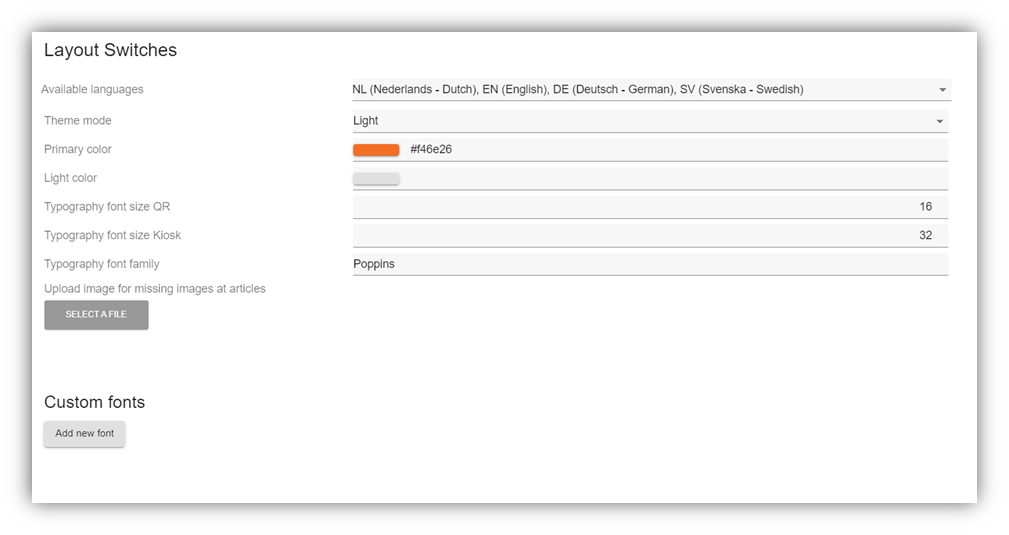
Available languages: Here you can select which languages will be available for the customer in the front end of Jamezz.
Theme mode: Here you can select the theme that will be applied on the front end, you can choose between dark and light mode.
Primary color: This will be the chosen color for the main buttons and look in the application.
Light color: Selecting a light color and different components on the application will stick to that color.
Typography font size QR: The font size of all your letters and numbers for your QR application.
Typography font size Kiosk: The font size of all your letters and numbers for your Kiosk application.
Typography font family: Here you can select what the main font will be for your application.
Upload image for missing images at articles: Here you can upload one picture that will be applied for all the products that do not have a image.
Custom fonts:
Here you upload your own custom font that can be used in the Jamezz application.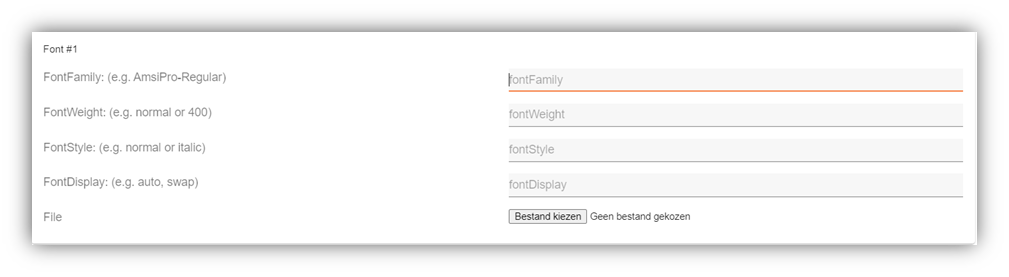
Custom Components:
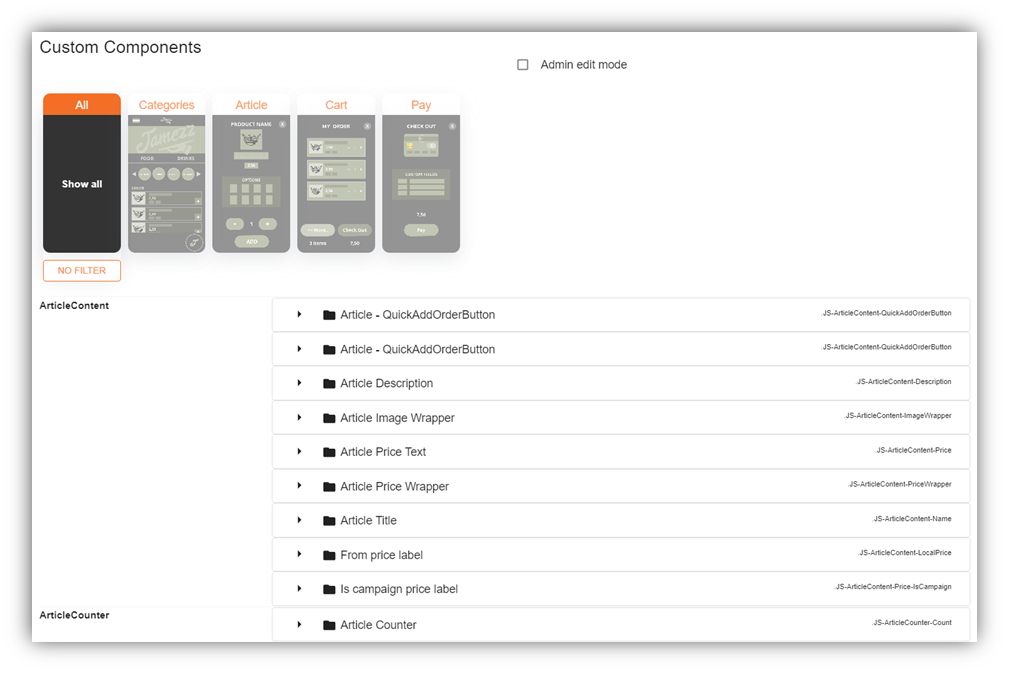
At the top you can select which part you want to edit in the application, there is a small difference between the QR and KIOSK version.
By clicking on the filter at the top you can specify what you want to change.

💡Good to know! Don't forget, if you change something, to save the whole page at the top of this page!