Lay-out & Style
In this tab you can set up a lot of settings for more specific details. Let us explain these things.
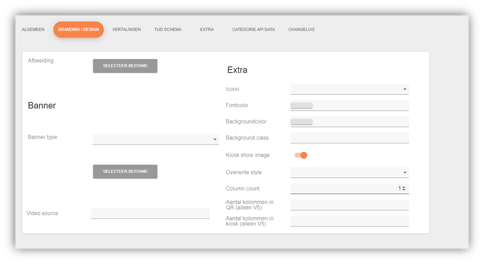
Banner
Banner Type: If you are adding a banner for your menu, you can select where the image or video will come from here.
Video Source: If you want a banner video, you can do so here. You need to paste a partial link into this.
Extra
This are the most important things:
Icon: Here you can select an appropriate icon for your menu which will then be displayed in application.
Fontcolor: You can add a font color to your menu here. You do this by means of a hex code.
Backgroundcolor: Here you can give a background to your menu text. You do this by means of a hex code.
Overwrite Style: Here you can specify how your products should be displayed in the menu. The most default option is a list view, then all your products will be displayed below each other.
Column Count: You can specify here how many products should be displayed next to each other. If you put a 3 here, your products will be displayed side by side in groups of 3.
Translations
Here you set up the translations of the category name, description and main category like food and drinks in all different languages.
Category Display Times
If you would like to have that a category on different times are available in the application you can set up the different times in this tab. You can also add exceptions if that is important.
Additional
HIDDEN ORDERS: These products are automatically added with EVERY product from this category: You can incorporate here in the menu area, for example, delivery charges or transaction fees. Everything that is ordered from this menu will get that extra product.
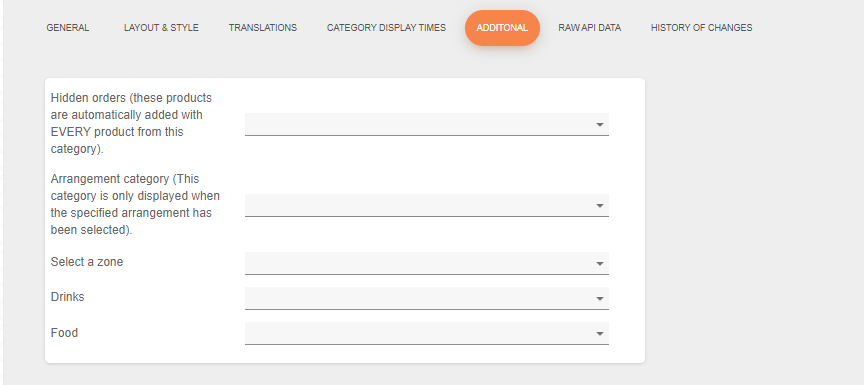
ARRANGEMENT CATEGORY: This category is only displayed when the specified arrangement has been selected.
Select a zone
Drinks
Food
RAW API data:
This is the information we receive from the POS system when you load it into Jamezz through synchronization.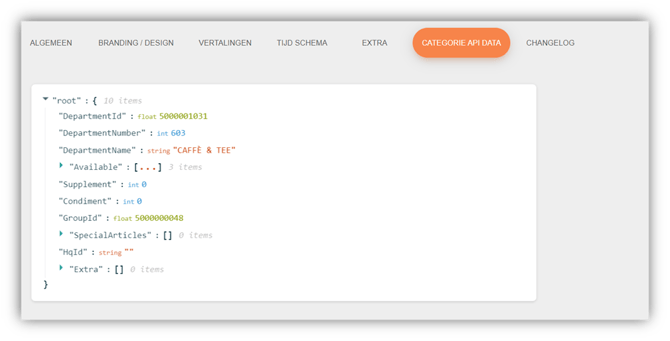
History of changes:
The changelog is important to see all changes from the category.