Edit the category you would like to give a time schedule to with the pencil icon.

Go to the tab category display times.
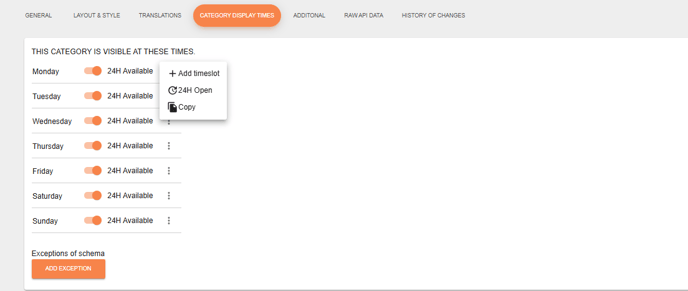
If you click on the three points you can add a timeslot or choose 24H open or copy.
For example if you have categories for diner, you click on add timeslot and than it's possible to create the timeslot. The diner categories can you create like 17:00 till 20:00. In the application is the diner categorie on that time available. Outside these times, the category will not be displayed in the application. You must enter all times for all days. If you don't do this and only fill in Monday then it will not be visible for the rest of the days. If you have the same times is it easy to copy it to all days with the button copy.
💡Good to know! It is also possible to give multiple categories the same schedule at once. This must be done through the mass editor. You select the categories cards you want to give a time schedule to and then choose 'edit'
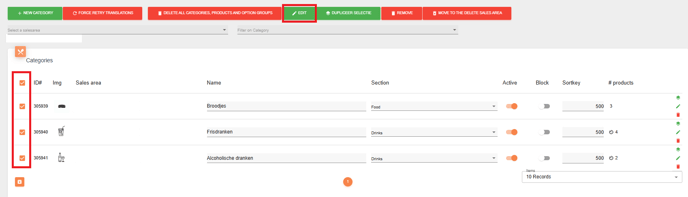
If you click on edit you see a pop-up with edit category. Choose than for the option openingHours. Now you can create a timetable for the selected categories.
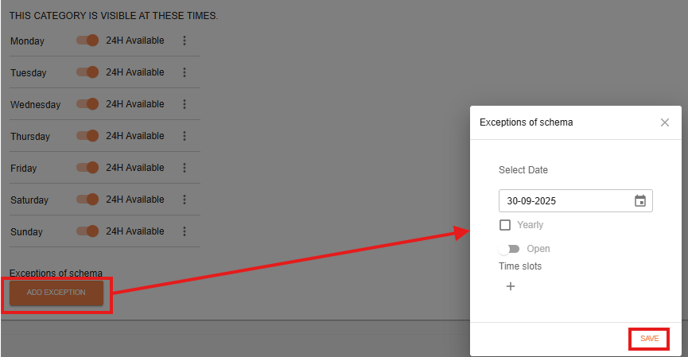
If there are exceptions to the time schedule — for example, if there is a day in the week when the category is not available, please click on 'Add Exception' and create the exception there and save that.