💡Good to know! If you have more salesareas that have different menus but for example the same product photos or allergens you can create in MAPPS a MULTI SYNC AREA. How you can use MAPPS we would like to explain.
First of all, you need one salesarea that makes you the PARENT salesarea and all the follower salesareas are the CHILD salesareas. If you choose the parent salesarea you can enable the Parent checkbox and you will see the following settings:
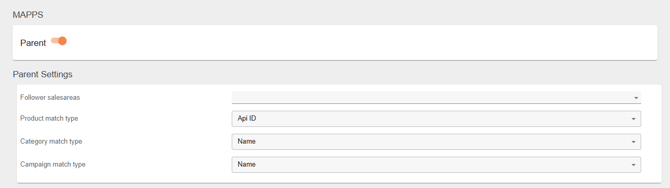
Under Follower Sales Areas you can search and select the salesareas to which you would like to transfer the data (for example, the photos of the articles).
In most cases, the transfer is done based on an API-ID match. But it is possible to do it with the product name, the system nam or Uuid. After configuring these settings, save the page.

Step 2. Go to each individual salesarea that you selected under Follower Sales Areas.
Within each follower salesarea, you can also go to the MAPPS tab to configure the Follower Settings. Enable the checkboxes for the data you would like to copy over.
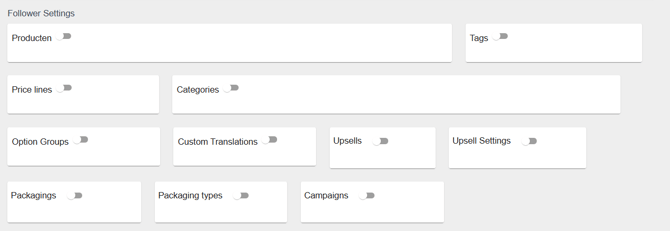
For example the product photos again, you need to enable the Products option, and after that, you can select Product Media. Save the page, provided this is the only data you want to transfer, otherwise, you can also select additional options as needed.
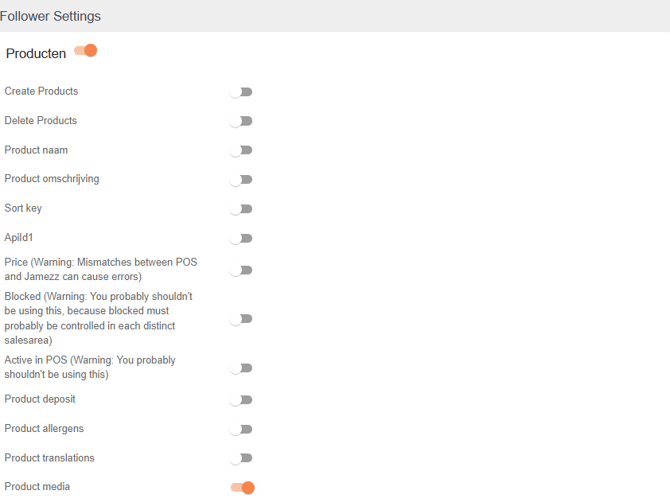
Once everything is configured, save the page and repeat this process for all other follower salesareas.
Only after everything has been set up correctly, you can start the Multi Area Sync.
To start the Multi Area Sync, go back to the parent area and on tab Import POS Data you will find the synchronization button.

To check whether the synchronization was successful, go to the SyncV2 Logs tab next to Import POS data and check the synchronization is done or failed.