💡Good to know! It is important to know that if you are working with Jamezz and a POS system for example UnTill, Lightspeed etc. the categories are synchronized from your cash register to Jamezz Backoffice. It varies what information each cash register imports from the menu.
Discuss with your cash register supplier what you set up there and sync with Jamezz and after that look to the result and change the rest in Jamezz BackOffice.
In the category overview, you can see the active or blocked status and the sort key. The sort key determines the order in which the menus are displayed in your application.
If you edit a category you find a lot of possibilities to change:
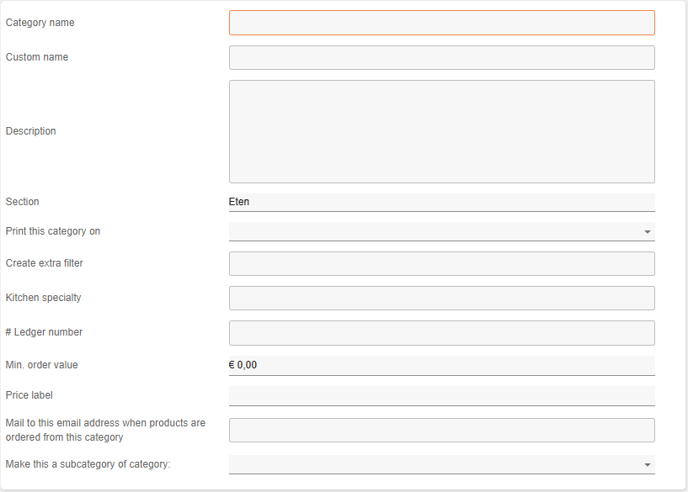
Category name: Displays the name of what the menu is called.
Custom name: Here you can enter a name and then this name will be displayed in the application.
Description: Here you can add a description for your menu and then this will be displayed in the application.
Section: Here you can again indicate under which group the menu should fall. Your options are food and drink.
Printer this category on: Here you can specify from which printer the receipt should come for the menu.
# Ledger number: Used to add a general ledger account in the export for processing in the accounting.
Min order value: Here you can enter the minimum amount of an order if you want to place the order. This is all at menu level.
Mail to this email address when product are ordered from this category: Here you can enter an e-mail address where you will automatically receive an e-mail if you have errors in the menu.
Make this a subcategory of category: You can add a menu to another menu to create a sub category For example: the main menu is: Beers and the sub categories are: Specialty beer, white beer and 0.0% beer
There are also settings like active, block, display in category overview. We would like to explain these buttons.
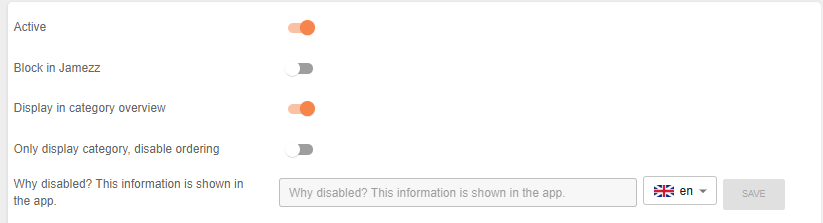
Active: Here it is displayed whether the menu is active in the cash register or not.
Block in Jamezz: You can block menus here so they are not displayed in the application.
Display in category overview: If you would like to show your category to your guests, this button is turn on.
Only display category, disable ordering: The menu will still be visible in the application but you won't be able to order. You can set here that your customers can no longer order from the menu.
Why disabled? This information is shown in the app: You can set up here the reason of why the category is disabled. For example: out of stock, not available or available soon.